First, I apologize—this is my fault. I thought I could return to the classroom on graduation day after the gaokao, but the teacher wouldn't allow it. So, unless something unexpected happens, the classroom computer should still have an auto-playing lunchtime news program, a gaokao countdown for evening self-study (the content updates fine, but after minimizing, there's still a timer in the bottom-right corner counting down to the 2026 gaokao day), and a big-screen gaokao display for morning self-study. Of course, the AV teacher might also clean everything up, in which case you won't even see this article—haha.
If you don't want to keep these, here's how to turn them off:
Method 1: Find the AV Teacher
You'll need to find a teacher who knows the Seewo Ice Point Restore or the lock screen password. In Seewo Manager, click on Ice Point Restore, enter the password, exit Ice Point Restore, and then complete a restart.
After restarting, visit blog.imikufans.com to find this article and continue reading. Locate the folder C:\Users\syste\AppData\Roaming\Microsoft\Windows\Start Menu\Programs\Startup. You can paste this path into the address bar of File Explorer, or navigate step by step. Remember, when you enter the user folder, there's a "View" option at the top—select "Hidden items" to continue. If you navigate manually, the Startup folder will show as "启动" in Chinese, and Programs as "程序". In short, find this location and delete all shortcuts inside. Then restart once more, go back to Seewo Manager, and turn Ice Point Restore back on.
Method 2: No AV Teacher Needed
This method requires your help. You'll need to do it in the afternoon. Turn on the computer and wait about 5 minutes, then right-click the taskbar and open Task Manager.
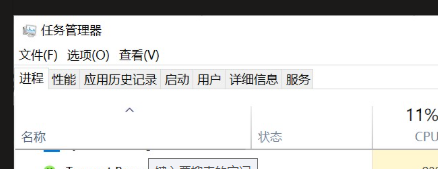
See the "Startup" tab above? Click it, then take a screenshot of everything on that screen and post it in the comments. I'll receive the notification email within about a day, write the corresponding deletion script, and post the fixed program here for you to follow.
(For screenshots: press Ctrl, Shift, and the letter S simultaneously on your keyboard, then select the screen area. After releasing the mouse, the image will be saved to the clipboard. Then right-click in the comments section and paste.)
Thank you very much for reading this far.
Contact info: WeChat: syskuku-mikurisa, Email: syskuku@imikufans.com
To the Next AV Commissioner of Class 5 (Other Readers Can Skip)